Loads code from the internet. It downloads more code when it runs (loadstring + HttpGet), which can change after it was posted. From: raw.githubusercontent.com.
About this script
🔗 GitHub: github.com/17kShotsss/UI-LIBRARY
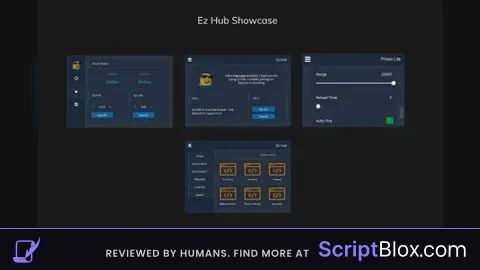
Modded Linoria UI for Roblox
Clean dark theme, scrollable vertical tabs, smoother FPS, and customizable toggles. Lightweight and perfect for script hubs.
-- Set Center to true if you want the menu to appear in the center
-- Set AutoShow to true if you want the menu to appear when it is created
-- Position and Size are also valid options here
-- but you do not need to define them unless you are changing them :)
'Example menu'
true
true
-- You do not have to set your tabs & groups up this way, just a prefrence.
local
-- Creates a new tab titled Main
AddTab
'Main'
'UI Settings'
AddTab
'UI Settings'
-- Groupbox and Tabbox inherit the same functions
-- except Tabboxes you have to call the functions on a tab (Tabbox:AddTab(name))
local
AddLeftGroupbox
'Groupbox'
-- Tabboxes are a tiny bit different, but here's a basic example:
--[[
local TabBox = Tabs.Main:AddLeftTabbox() -- Add Tabbox on left side
local Tab1 = TabBox:AddTab('Tab 1')
local Tab2 = TabBox:AddTab('Tab 2')
-- You can now call AddToggle, etc on the tabs you added to the Tabbox
]]
-- Groupbox:AddToggle
-- Arguments: Index, Options
AddToggle
'MyToggle'
'This is a toggle'
true
-- Default value (true / false)
'This is a tooltip'
-- Information shown when you hover over the toggle
-- Fetching a toggle object for later use:
-- Toggles.MyToggle.Value
-- Toggles is a table added to getgenv() by the library
-- You index Toggles with the specified index, in this case it is 'MyToggle'
-- To get the state of the toggle you do toggle.Value
-- Calls the passed function when the toggle is updated
OnChanged
function
-- here we get our toggle object & then get its value
print
'MyToggle changed to:'
end
-- This should print to the console: "My toggle state changed! New value: false"
SetValue
false
-- Groupbox:AddButton
-- Arguments: Text, Callback
local
AddButton
'Button'
function
print
'You clicked a button!'
end
-- Button:AddButton
-- Arguments: Text, Callback
-- Adds a sub button to the side of the main button
local
AddButton
'Sub button'
function
print
'You clicked a sub button!'
end
-- Button:AddTooltip
-- Arguments: ToolTip
AddTooltip
'This is a button'
AddTooltip
'This is a sub button'
-- NOTE: You can chain the button methods!
--[[
EXAMPLE:
LeftGroupBox:AddButton('Kill all', Functions.KillAll):AddTooltip('This will kill everyone in the game!')
:AddButton('Kick all', Functions.KickAll):AddTooltip('This will kick everyone in the game!')
]]
-- Groupbox:AddLabel
-- Arguments: Text, DoesWrap
AddLabel
'This is a label'
AddLabel
'This is a label\n\nwhich wraps its text!'
true
-- Groupbox:AddDivider
-- Arguments: None
AddDivider
-- Groupbox:AddSlider
-- Arguments: Idx, Options
AddSlider
'MySlider'
'This is my slider!'
-- Text, Default, Min, Max, Rounding must be specified.
-- Rounding is the number of decimal places for precision.
-- Example:
-- Rounding 0 - 5
-- Rounding 1 - 5.1
-- Rounding 2 - 5.15
-- Rounding 3 - 5.155
0
0
5
1
false
-- If set to true, then it will hide the label
-- Options is a table added to getgenv() by the library
-- You index Options with the specified index, in this case it is 'MySlider'
-- To get the value of the slider you do slider.Value
local
OnChanged
function
print
'MySlider was changed! New value:'
end
-- This should print to the console: "MySlider was changed! New value: 3"
SetValue
3
-- Groupbox:AddInput
-- Arguments: Idx, Info
AddInput
'MyTextbox'
'My textbox!'
false
-- true / false, only allows numbers
false
-- true / false, only calls callback when you press enter
'This is a textbox'
'This is a tooltip'
-- Information shown when you hover over the textbox
'Placeholder text'
-- placeholder text when the box is empty
-- MaxLength is also an option which is the max length of the text
OnChanged
function
print
'Text updated. New text:'
end
-- Groupbox:AddDropdown
-- Arguments: Idx, Info
AddDropdown
'MyDropdown'
'This'
'is'
'a'
'dropdown'
1
-- number index of the value / string
false
-- true / false, allows multiple choices to be selected
'A dropdown'
'This is a tooltip'
-- Information shown when you hover over the textbox
OnChanged
function
print
'Dropdown got changed. New value:'
end
SetValue
'This'
-- Multi dropdowns
AddDropdown
'MyMultiDropdown'
-- Default is the numeric index (e.g. "This" would be 1 since it if first in the values list)
-- Default also accepts a string as well
-- Currently you can not set multiple values with a dropdown
'This'
'is'
'a'
'dropdown'
1
true
-- true / false, allows multiple choices to be selected
'A dropdown'
'This is a tooltip'
-- Information shown when you hover over the textbox
OnChanged
function
-- print('Dropdown got changed. New value:', )
print
'Multi dropdown got changed:'
for
in
next
do
print
-- should print something like This, true
end
end
SetValue
true
true
-- Label:AddColorPicker
-- Arguments: Idx, Info
-- You can also ColorPicker & KeyPicker to a Toggle as well
AddLabel
'Color'
AddColorPicker
'ColorPicker'
Color3
new
0
1
0
-- Bright green
'Some color'
-- Optional. Allows you to have a custom color picker title (when you open it)
OnChanged
function
print
'Color changed!'
end
SetValueRGB
Color3
fromRGB
0
255
140
AddLabel
'Keybind'
AddKeyPicker
'KeyPicker'
-- SyncToggleState only works with toggles.
-- It allows you to make a keybind which has its state synced with its parent toggle
-- Example: Keybind which you use to toggle flyhack, etc.
-- Changing the toggle disables the keybind state and toggling the keybind switches the toggle state
'MB2'
-- String as the name of the keybind (MB1, MB2 for mouse buttons)
false
-- You can define custom Modes but I have never had a use for it.
'Toggle'
-- Modes: Always, Toggle, Hold
'Auto lockpick safes'
-- Text to display in the keybind menu
false
-- Set to true if you want to hide from the Keybind menu,
-- OnClick is only fired when you press the keybind and the mode is Toggle
-- Otherwise, you will have to use Keybind:GetState()
OnClick
function
print
'Keybind clicked!'
end
task
spawn
function
while
true
do
wait
1
-- example for checking if a keybind is being pressed
local
GetState
if
then
print
'KeyPicker is being held down'
end
if
then
break
end
end
end
SetValue
'MB2'
'Toggle'
-- Sets keybind to MB2, mode to Hold
-- Library functions
-- Sets the watermark visibility
SetWatermarkVisibility
true
-- Sets the watermark text
SetWatermark
'This is a really long watermark to text the resizing'
true
-- todo: add a function for this
OnUnload
function
print
'Unloaded!'
true
end
-- UI Settings
local
'UI Settings'
AddLeftGroupbox
'Menu'
-- I set NoUI so it does not show up in the keybinds menu
AddButton
'Unload'
function
Unload
end
AddLabel
'Menu bind'
AddKeyPicker
'MenuKeybind'
'End'
true
'Menu keybind'
-- Allows you to have a custom keybind for the menu
-- Addons:
-- SaveManager (Allows you to have a configuration system)
-- ThemeManager (Allows you to have a menu theme system)
-- Hand the library over to our managers
SetLibrary
SetLibrary
-- Ignore keys that are used by ThemeManager.
-- (we dont want configs to save themes, do we?)
IgnoreThemeSettings
-- Adds our MenuKeybind to the ignore list
-- (do you want each config to have a different menu key? probably not.)
SetIgnoreIndexes
'MenuKeybind'
-- use case for doing it this way:
-- a script hub could have themes in a global folder
-- and game configs in a separate folder per game
SetFolder
'MyScriptHub'
SetFolder
'MyScriptHub/specific-game'
-- Builds our config menu on the right side of our tab
BuildConfigSection
'UI Settings'
-- Builds our theme menu (with plenty of built in themes) on the left side
-- NOTE: you can also call ThemeManager:ApplyToGroupbox to add it to a specific groupbox
ApplyToTab
'UI Settings'
-- You can use the SaveManager:LoadAutoloadConfig() to load a config
-- which has been marked to be one that auto loads!
 Sander_NL 1 year ago 10K views 1